Microsoft Word
Choose Word when you need an editable document for additional revisions.
EDITABLE DOCUMENTA SIMPLE GUIDE / DOC MERGE STUDIO
From your first set of fields to a ready-to-share file, Doc Merge Studio keeps repetitive document work simple. Follow these four steps to build a workflow you can use again and again.
Start the walkthroughSEE EACH STEP IN THE APP
These are real Doc Merge Studio screenshots. Switch all examples between light and dark mode.
START WITH THE FIELDS TAB
Begin by setting up the information your document needs. Keep your field names organized so the same details can be inserted into a template wherever they're required.
Add the names, dates, addresses, reference numbers, or other information specific to your workflow.
Enter the details that will appear in your document. Update these values each time you create a new version.
For fields with common answers, create dropdown selections to reduce retyping and keep entries consistent.
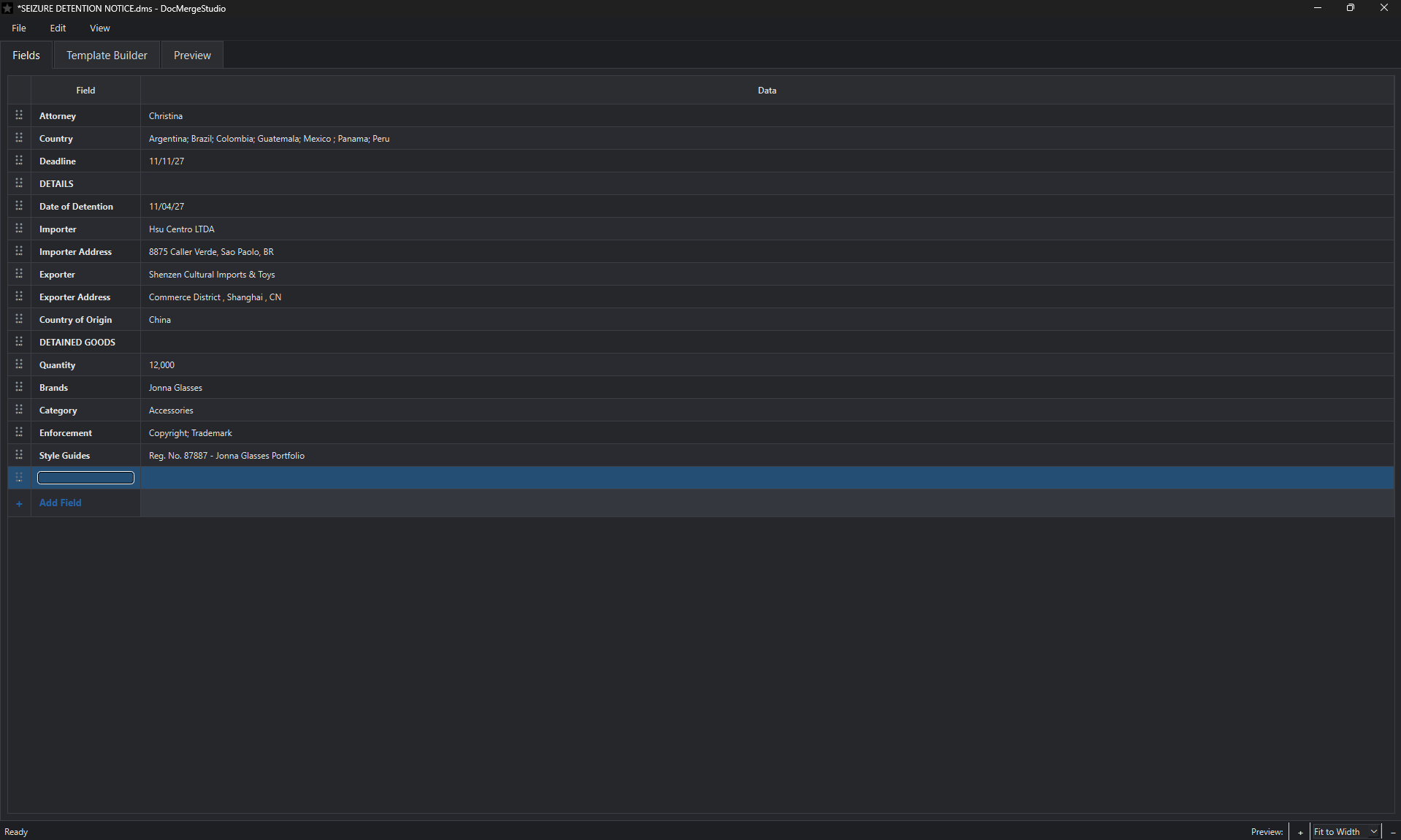
Why dropdowns help: Instead of typing the same information over and over, enter your available choices once in the Fields tab and turn the field into a dropdown menu in Template Builder. Simply select the appropriate option each time you reuse the template.
MOVE TO TEMPLATE BUILDER
Write the content that stays the same from document to document. Then add placeholders for information that changes, using the fields you created in Step 1.
Draft a reusable email, letter, notice, or other document in the Template Builder.
Use the editor's familiar formatting tools for text, headings, lists, and emphasis.
Place field placeholders where the changing details belong. Reuse a field in multiple locations as needed.
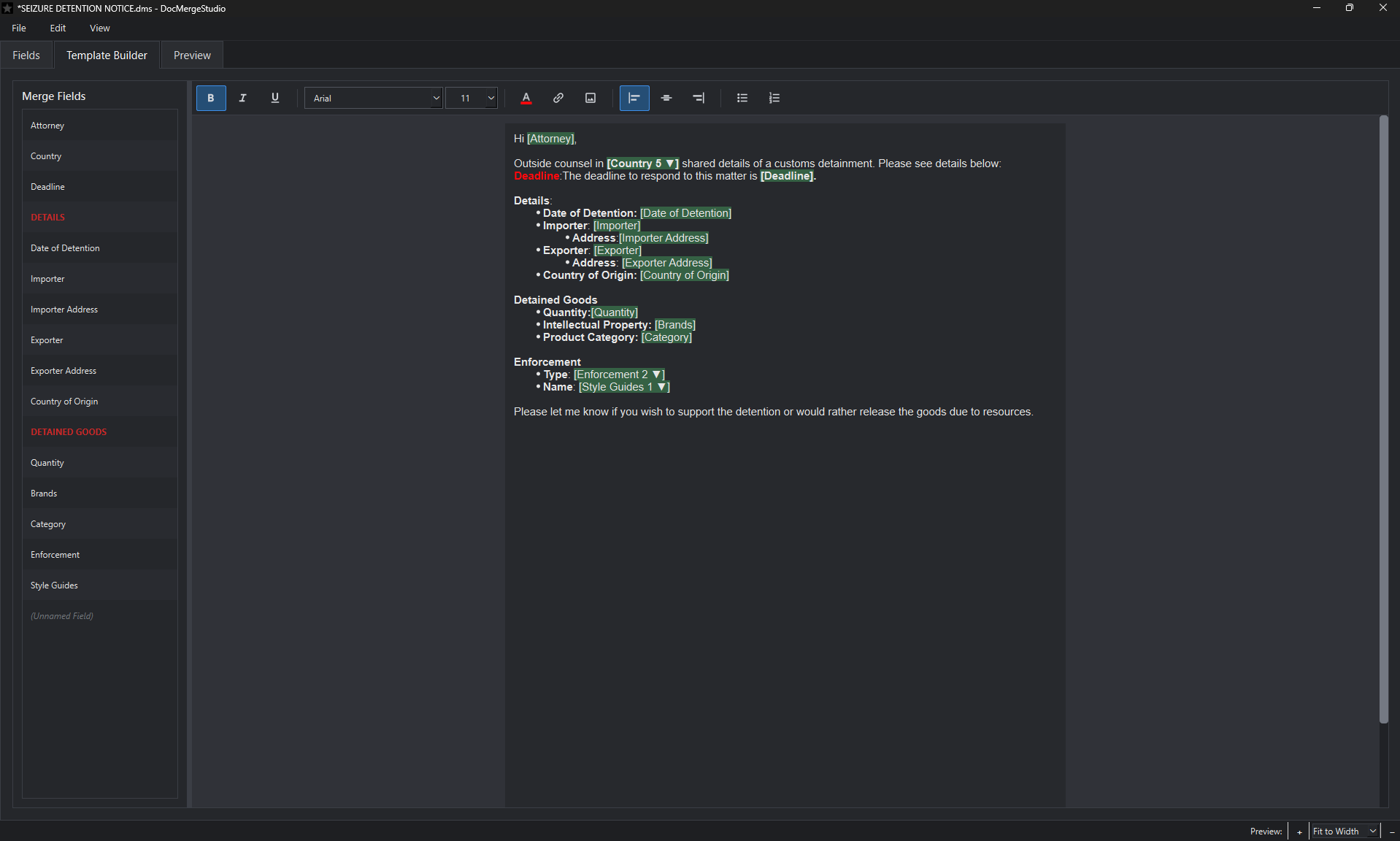
Example: A recurring notice can keep its introduction and formatting while replacing names, dates, and quantities with the values entered for each new matter.
CHECK THE PREVIEW
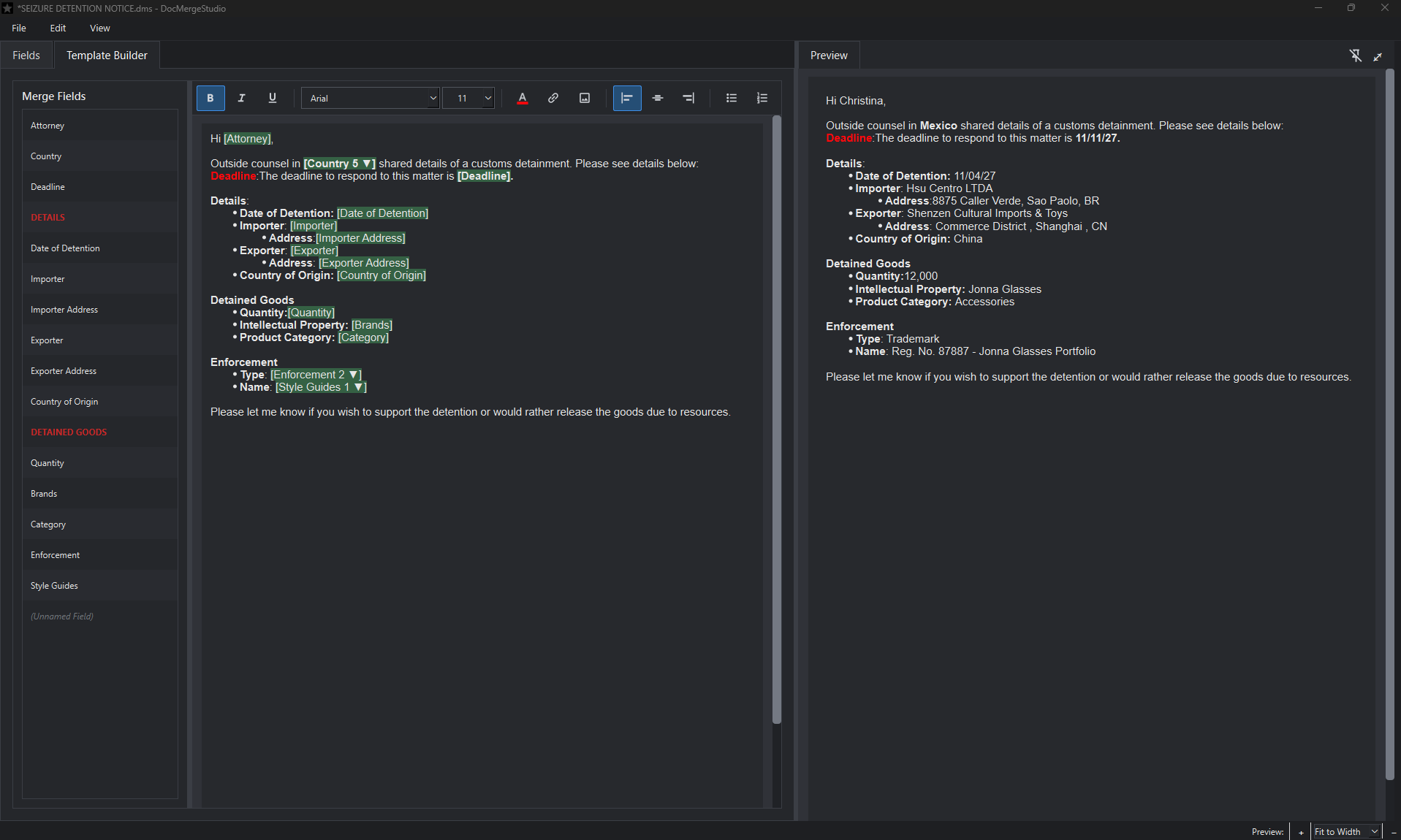
Review the populated document before exporting. The Preview displays your template with the entered field values in place, so you can check the final wording and presentation.
Confirm that names, dates, selections, and other details appear as intended.
Read through the document and check spacing, emphasis, and layout.
Return to your fields or template if you need to correct a value or adjust wording.
FINISH THE DOCUMENT
Once your document looks right, export it in the format that fits your work. Keep the reusable project so you can return to the same template for your next document.
Choose Word when you need an editable document for additional revisions.
EDITABLE DOCUMENTChoose PDF when you want a portable version for review or distribution.
PORTABLE DOCUMENTChoose HTML for workflows that use formatted web or email-compatible content.
HTML DOCUMENTYOUR NEXT DOCUMENT
Save your Doc Merge Studio project with its fields and template. The next time you need a similar document, reopen it, update the changing details, and export another version.
See all featuresREADY FOR YOUR FIRST TEMPLATE?
Doc Merge Studio is Windows desktop software with a 14-day free trial. The public installer and checkout links will be added before launch.